
Clock settings
Themes, time format, first weekday and defaults for light and timers.
Open settings
Open Clock's menu and select Settings. General settings change the app's presentation; editor settings are saved in each alarm.


Theme, time and week
Choose a light or dark theme and a 12- or 24-hour format. Set the first day of the week or let the phone determine it.
Default clock style selects the digital or analogue time picker for new alarms. Showing or hiding the option controls whether you can change it in each editor; these are not two modes of the local clock screen.


Timer sound and presets
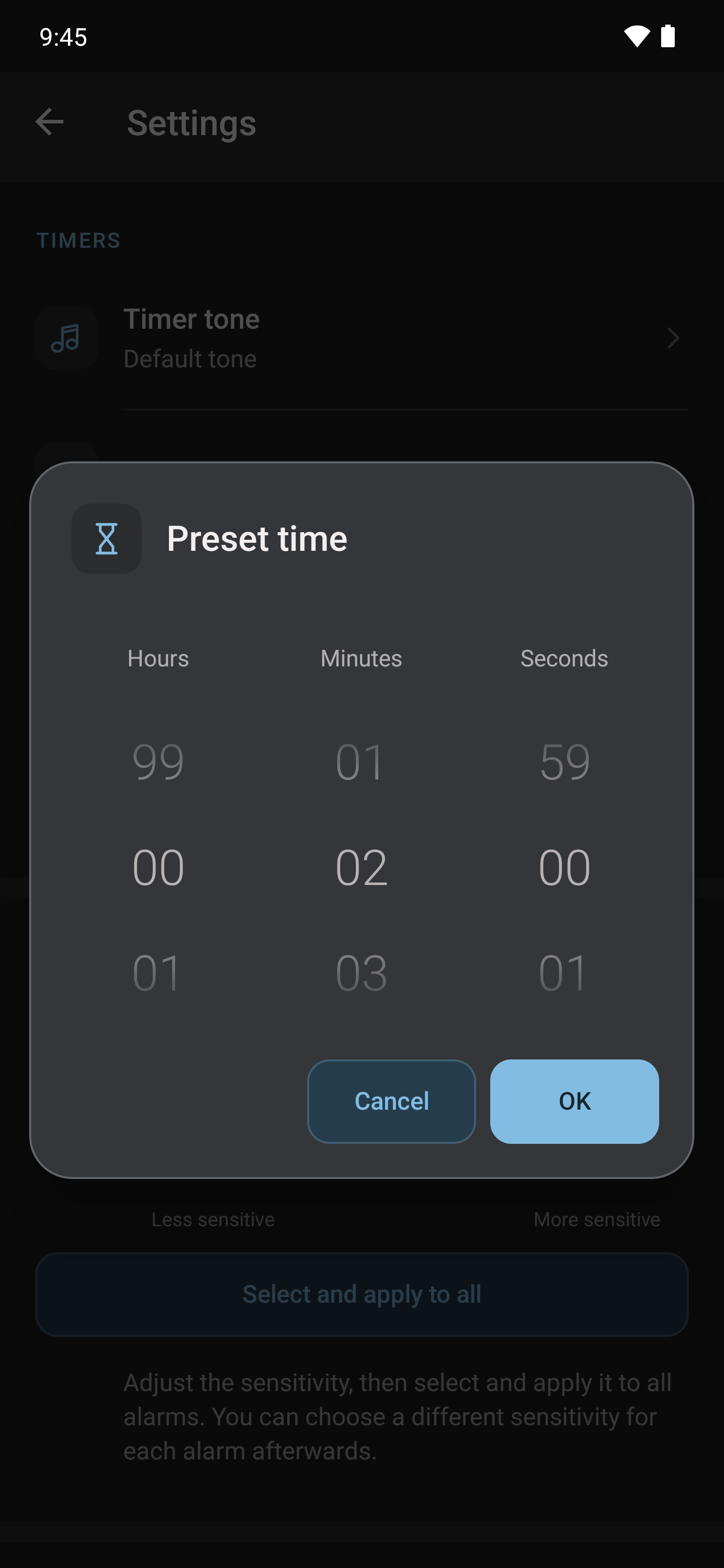
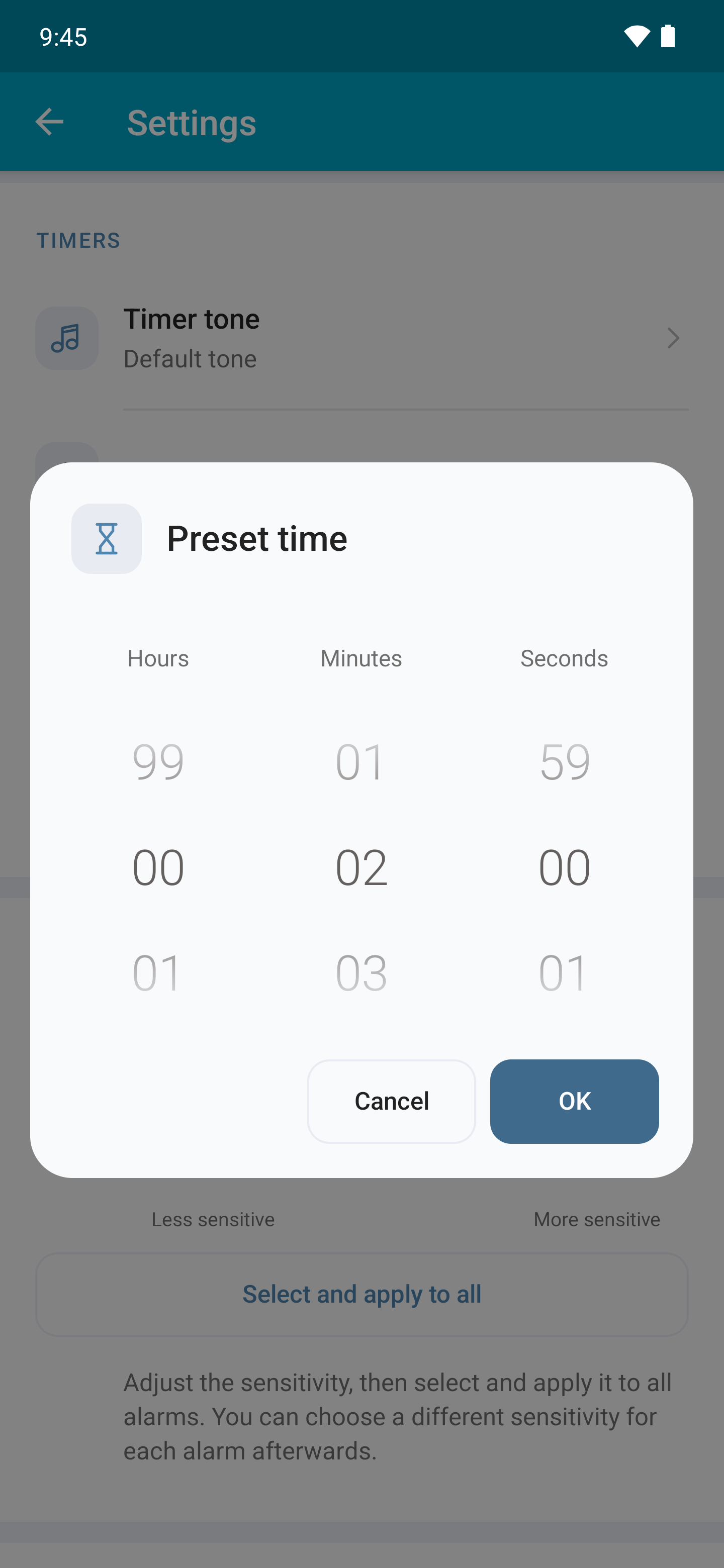
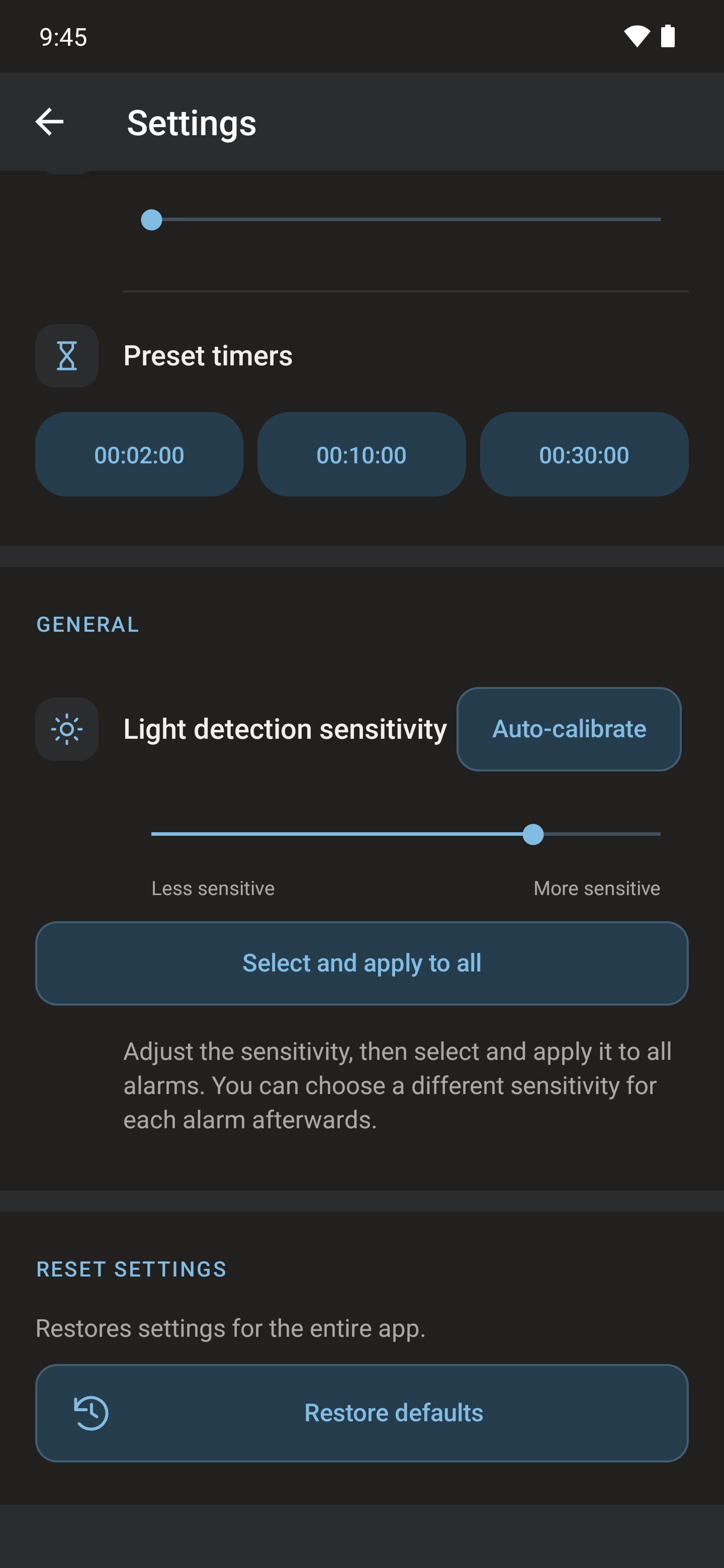
Timers includes the tone, volume and three preset durations. Each alarm's sound is set in its own editor.


Light detection sensitivity
The slider selects global sensitivity. It is not saved until you choose Select and apply to all and confirm. This affects existing and new alarms; you can adjust each alarm separately afterwards.
Auto-calibrate measures the room with the light off and on. The light guide shows both measurements, the suggestion and confirmation. Without a compatible sensor this section may be unavailable.

Restore defaults
Restore asks for confirmation and returns general settings to their initial values. It is not a button to delete all alarms or clear Android app data.
Check the theme, format, timer sound and light sensitivity again after restoring. Clearing storage in Android is a separate operation that can remove app data.

